Setting up the Lab539 hosted Conditional Access service
Quick Start
Enabling the Lab539 hosted AiTM Feed service is straightforward and can be achieved in a few minutes:
graph TB
    subgraph Customer_Actions [Deployment Stages]
        A[1. Log into the AiTM Feed Portal] --> B[2. Enable Lab539 Hosted Service]
        B --> C[3. Toggle Requred Named Locations]
        C --> D[4. Include Named Locations in Conditional Access Policies]
end-
When you registered an account will have been created for you in the portal, log into the portal with this account - use Microsoft/Google/Email to authenticate.
-
From within the portal you need to enable and authorise the Lab539 Hosted Named Location service. This is done by clicking the icon within this section and authorising the service.
-
Use the toggle switches to enable the named locations you wish to subscribe to. They will be created within you Azure environment.
-
Find or create a conditional access policy and include these named locations within it.
Once set up we will automatically update the named locations for you. It really is as easy as that.
Read the detailed guide below if you would like to understand more about each stage of this process.
Video Guide
This short video shows the process for enrolling and enabling the conditional access/named location service:
Note
Some aspects of this video show an older interface, nevertheless the concepts remain valid
Detailed Guide
Initial Enrolment
In order to utilise the service you must authorise the service. This can be done from within the “Conditional Access, Named Location Management” section of the portal (https://portal.lab539.io). If you have not yet logged into the portal you can do so using the email address you specified during registration.
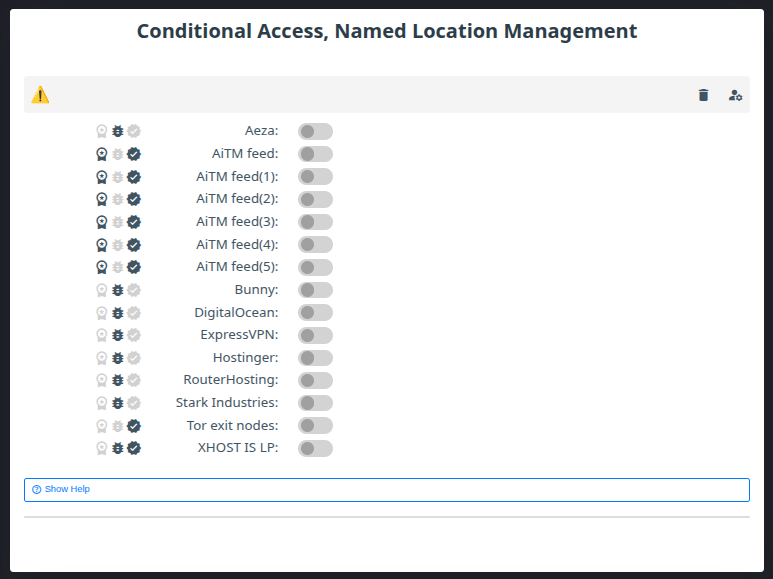
Configuring a user is done by clicking the icon in the top right that looks like a user with a cog. This will direct you to the Microsoft authentication service where you can select, or enter, the user account which you would like to use to authorise this service:
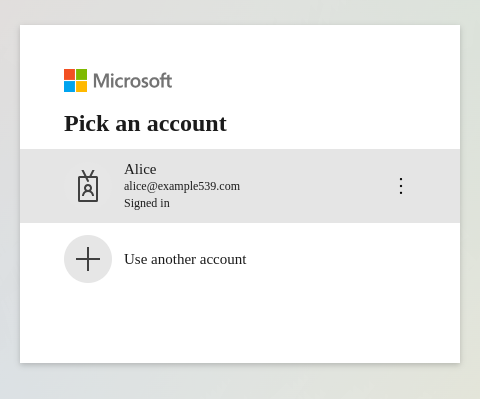
You should select a user account that has the permission to grant admin consent, as the account will be displayed an admin consent screen which will need to be accepted. This does not need to be the user that you are logged into the portal as. The only requirement is that the user holds the Conditional Access Administrator permission. Due to the nature of this service there is also a requirement to grant admin consent the first time a user in your tenant is configured.
Application Permissions
The "Lab539 AiTM Conditional Access Service" application requires the following permissions in order to operate:
-
Policy.ReadWrite.ConditionalAccess
-
Policy.Read.All
-
CrossTenantInformation.ReadBasic.All
The first two permissions are essential. Whilst the service never reads or writes any conditional access policies Microsoft do not currently provide the granularity of permissions required in order to specify to read/write only named locations and so we must request broader permissions than we actually need.
The CrossTenantInformation.ReadBasic.All permission is simply so that we can obtain a "friendly name" for your Microsoft tenant to display when you have authenticated the service, rather than relying on your tenantID. We only use this on initial registration, so you are welcome to revoke that once you are registered.
Consent
The consent screen will request that you grant the following consent:
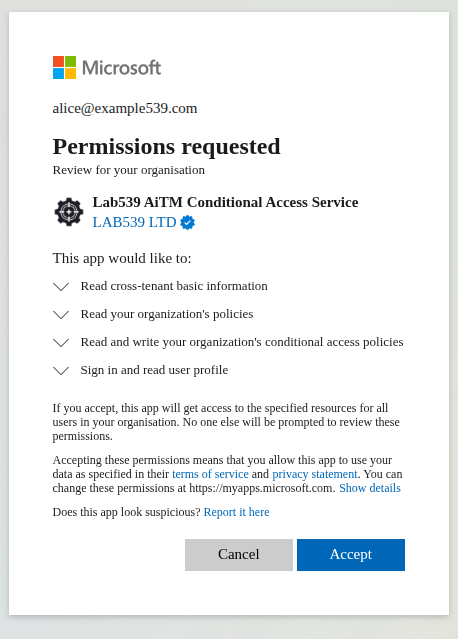
Because the service operates in the background, updating named locations in real time, it requires the “offline_access” permission (Maintain access to the data you have given it access to).
Successful Registration
If all permissions are in order you will see the users identity displayed with a green tick as below:
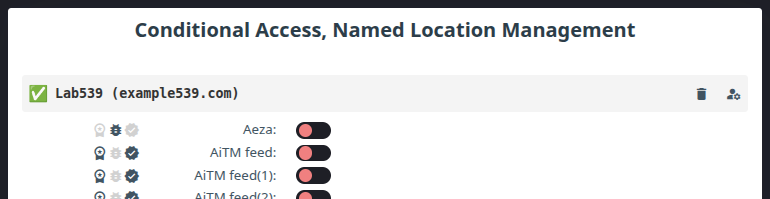
You are now able to enable and disable the named location feeds available within your subscription by simply toggling them on/off. Any feeds you enable will be immediately written to your named locations which can be found here: Microsoft Azure
Don't forget that having named locations is only one part of the picture, you also need to include them in your conditional access policies for them to achieve anything.
Enabling / Disabling Feeds
If you no longer wish to receive updates for a particular named location then you can disable it by toggling it to off and we will stop providing you updates - but you can enable it again at any time.
When you disable feeds that were once active we maintain a reference to those named locations in case you should enable them again. To delete both the reference and the named location you can do this by clicking the trash can icon next to the feed:
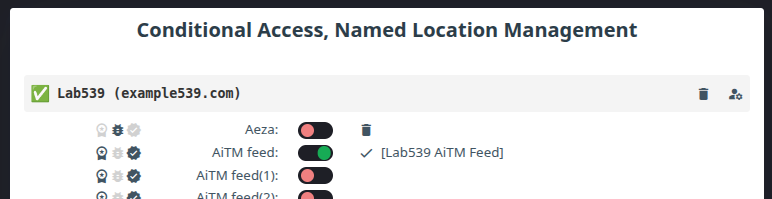
If you delete a named location in this way it will be deleted within your Azure portal. If you re-enable the feed after deleting the named location it will create a new named location. Whilst this will have the same name it will have a different identifier within Microsoft Graph and so this new named location will nee to be added to your conditional access policies agian.
Revoking Permissions
If at any time you would like to revoke the access you have granted you can do this from your Microsoft Azure dashboard: Microsoft Azure
The services is as follows:
Name: Lab539 AiTM Conditional Access Service
ApplicationID: a5279797-c740-4a7a-b758-3d9669723e5b
Under the “Manage” menu on the right, select “Properties” and then click the “Delete” button.
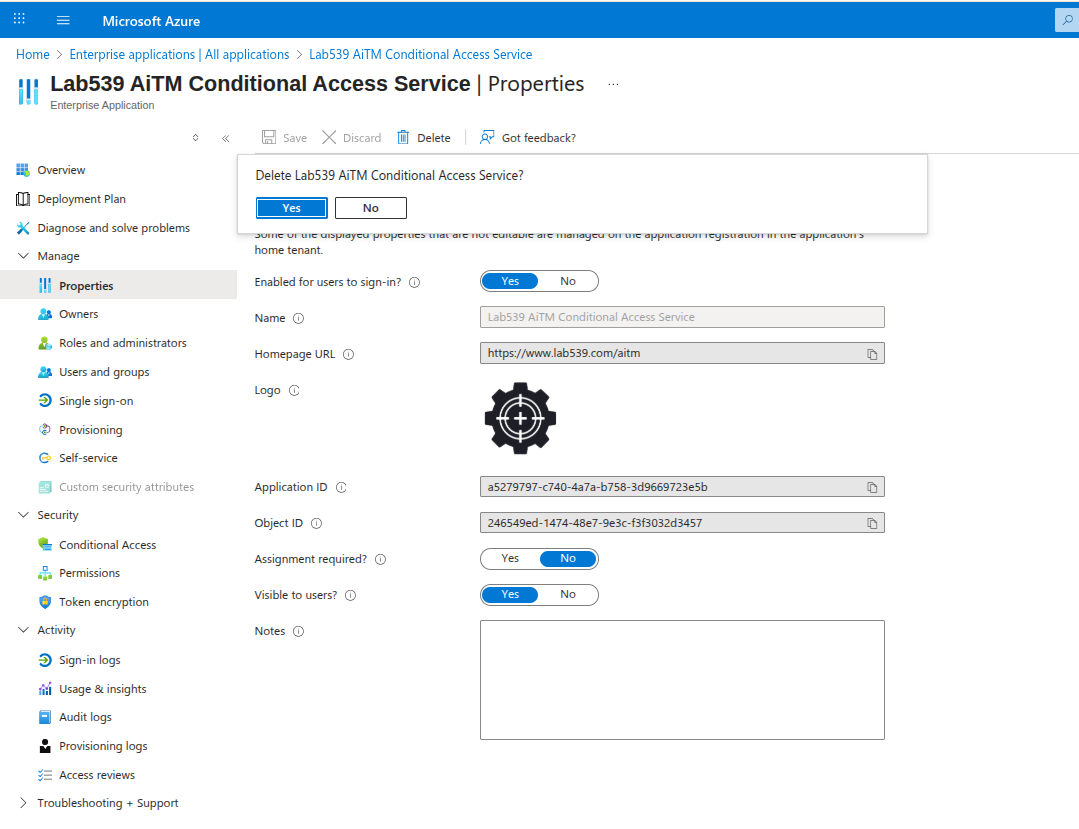
Obviously deleting the service will mean that we are no longer able to update the named locations you are subscribed to.
We recommend that you delete your named locations from within the AiTM Feed portal before deleting the app registration. This will ensure that our service does not attempt to update named locations that it no longer has permissions to update.